Navigation in the Organization Account
This guide shows you where to find everything in your bcause.com organization account. By the end, you will know exactly what is behind "Balance", "Donor List", "Toolbox", and "Settings", and how to switch between the different sections.
Pro tip
Once you have familiarized yourself with the navigation, you will find all the information about your donations, donors and settings in just a few clicks, without having to search for long – this saves you a lot of time in your everyday life and gives you a full overview of your donation account at any time.
What you need
An existing access to your bcause organization account
Your login credentials (email address)
About 5 minutes of time
A computer or device with an internet browser
Step-by-step instructions
1. Log into your organization account
Go to the bcause.com login page and log in with your credentials. After logging in, you will automatically land on the "Balance" page.

2. Get an overview of the navigation bar
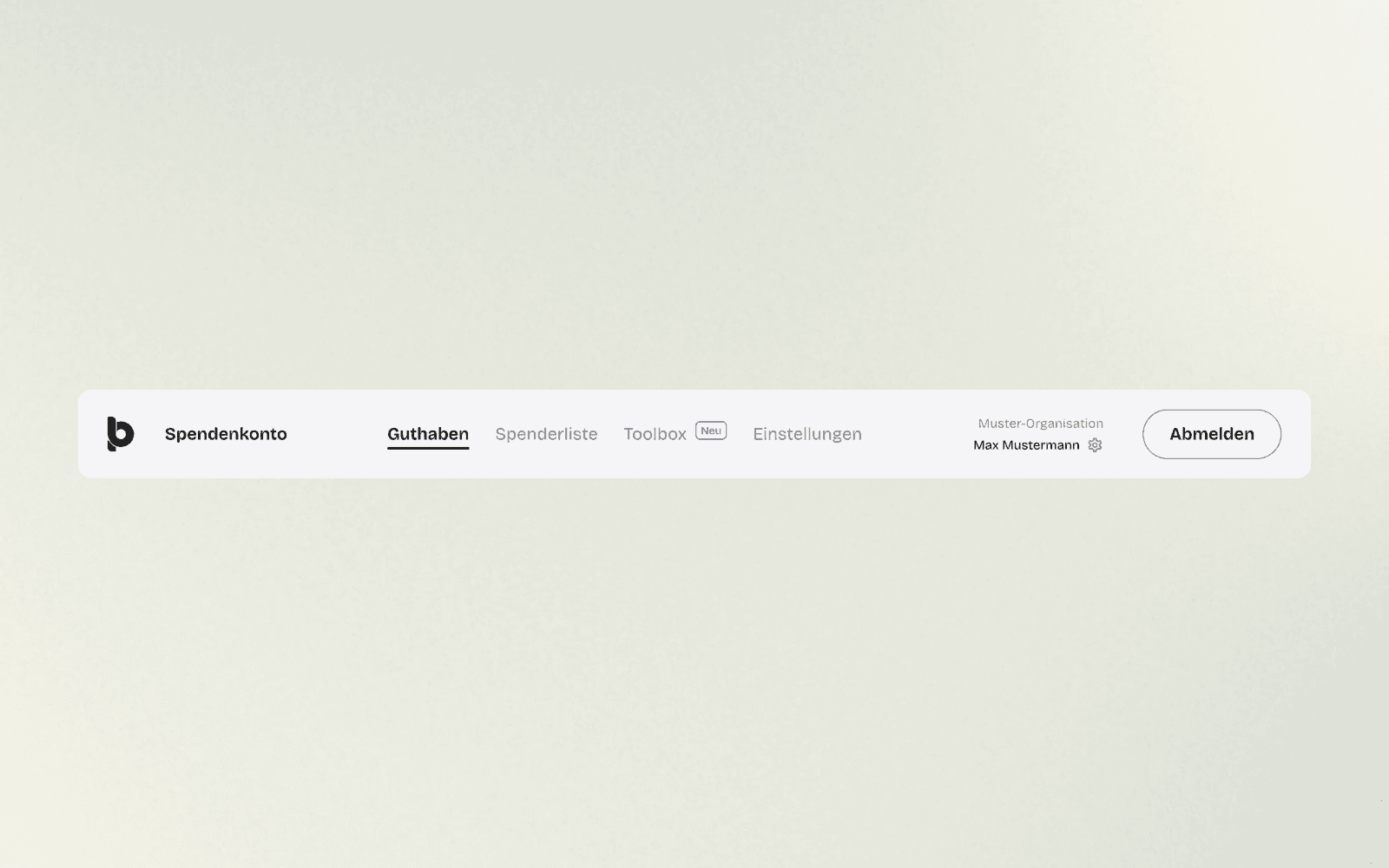
At the top of each page, you will see the main navigation. It shows you four central areas: "Balance", "Donor list", "Toolbox" and "Settings". To the right, you can see the name of your organization, the name of the logged-in person and the "Log out" button. Simply click on the desired menu item to switch to it.
3. Open the "Balance" section
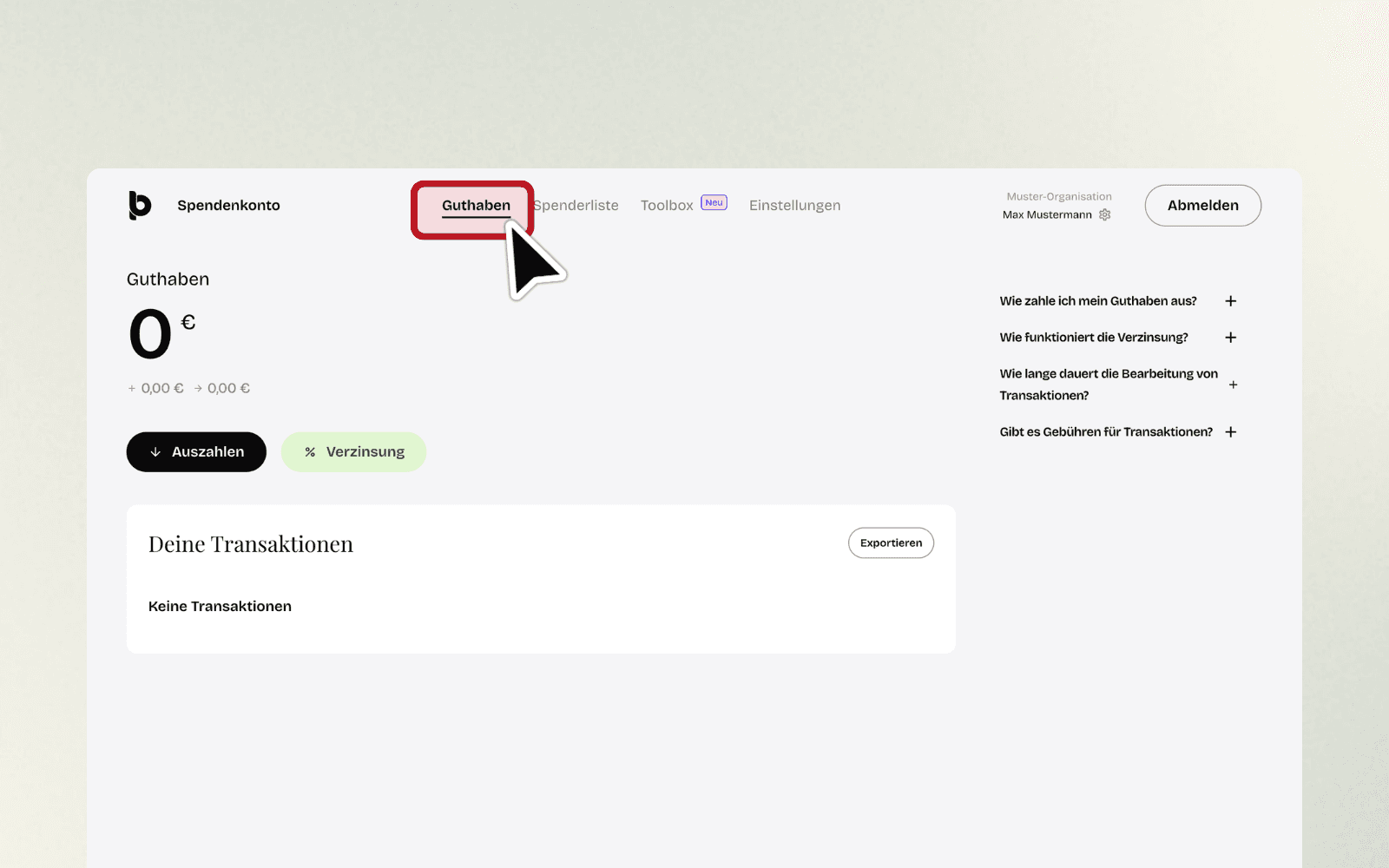
Tap on "Balance" in the navigation. Here you will see your current balance, for example as "0 €", as well as the "Payout" and "Interest" buttons. Below, you will find your transactions, meaning all incoming donations and completed payouts. Use the "Export" button to download your transactions as a file. On the right side, you will also find answers to frequently asked questions, such as "How do I pay out my balance?" or "How does the interest work?".
4. Open the "Donor list" section
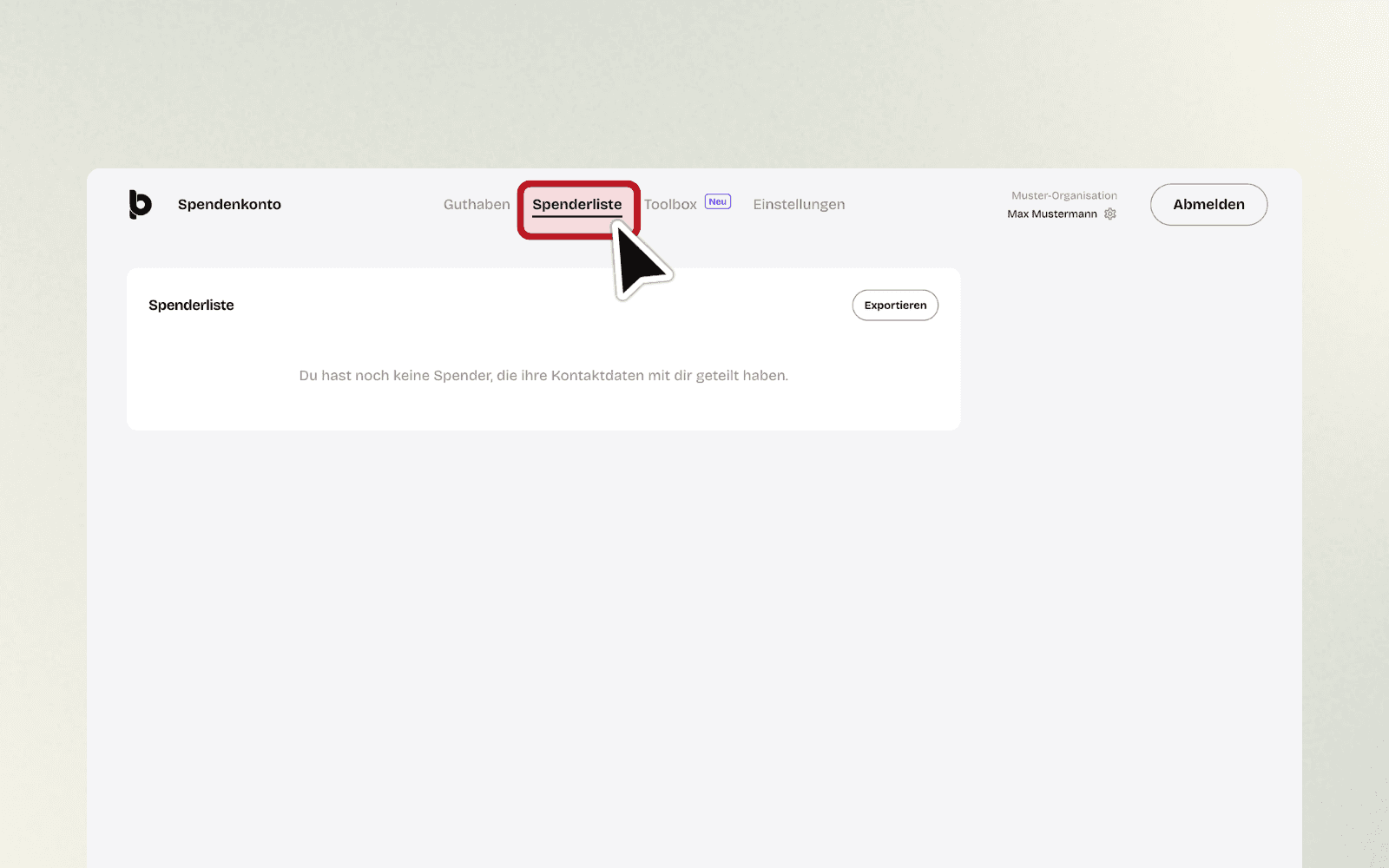
Click on "Donor list" in the navigation. Here you will find an overview of all donors who have shared their contact details with your organization. As long as no one has shared their data yet, you will see the message "You do not have any donors who have shared their contact details with you yet." You can also download the list here via "Export".
5. Open the "Toolbox" section
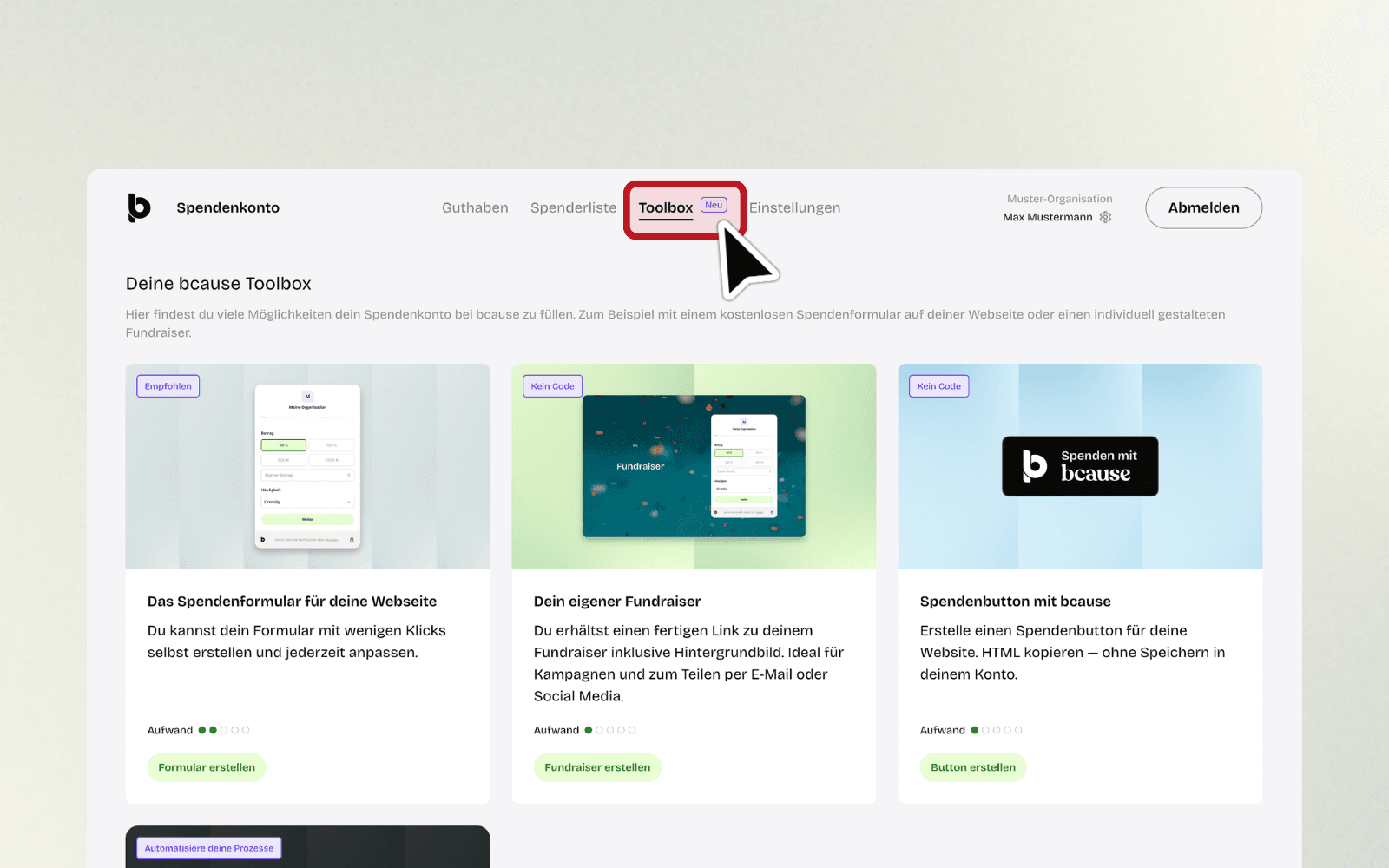
Select the "Toolbox" menu item in the navigation, which is additionally marked with a "New" indicator. Here you will find various tools that you can use to collect donations. You can choose, for example, "The donation form for your website" for integration on your own website, "Your own fundraiser" for an individual donation campaign with its own link, and "Donation button with bcause" to quickly integrate a button via HTML code. For each tool, you will see a brief description and an estimate of the effort involved. Click on the appropriate button, such as "Create form" or "Create fundraiser", to get started right away.
6. Open the "Settings" section
Click on "Settings" in the navigation. On the left side, a submenu opens with the items "Organization profile", "Payout account (mandatory)", "Tax exemption certificate (mandatory)", "Usage notes", "Anonymous donations (optional)", "Team" and "Widget domains". Under "Organization profile", for example, you maintain the name of your organization, your logo, a cover picture and your bcause handle, which is the individual address of your donation page. You can use the "Preview" button at the top right at any time to see what your profile looks like to donors.
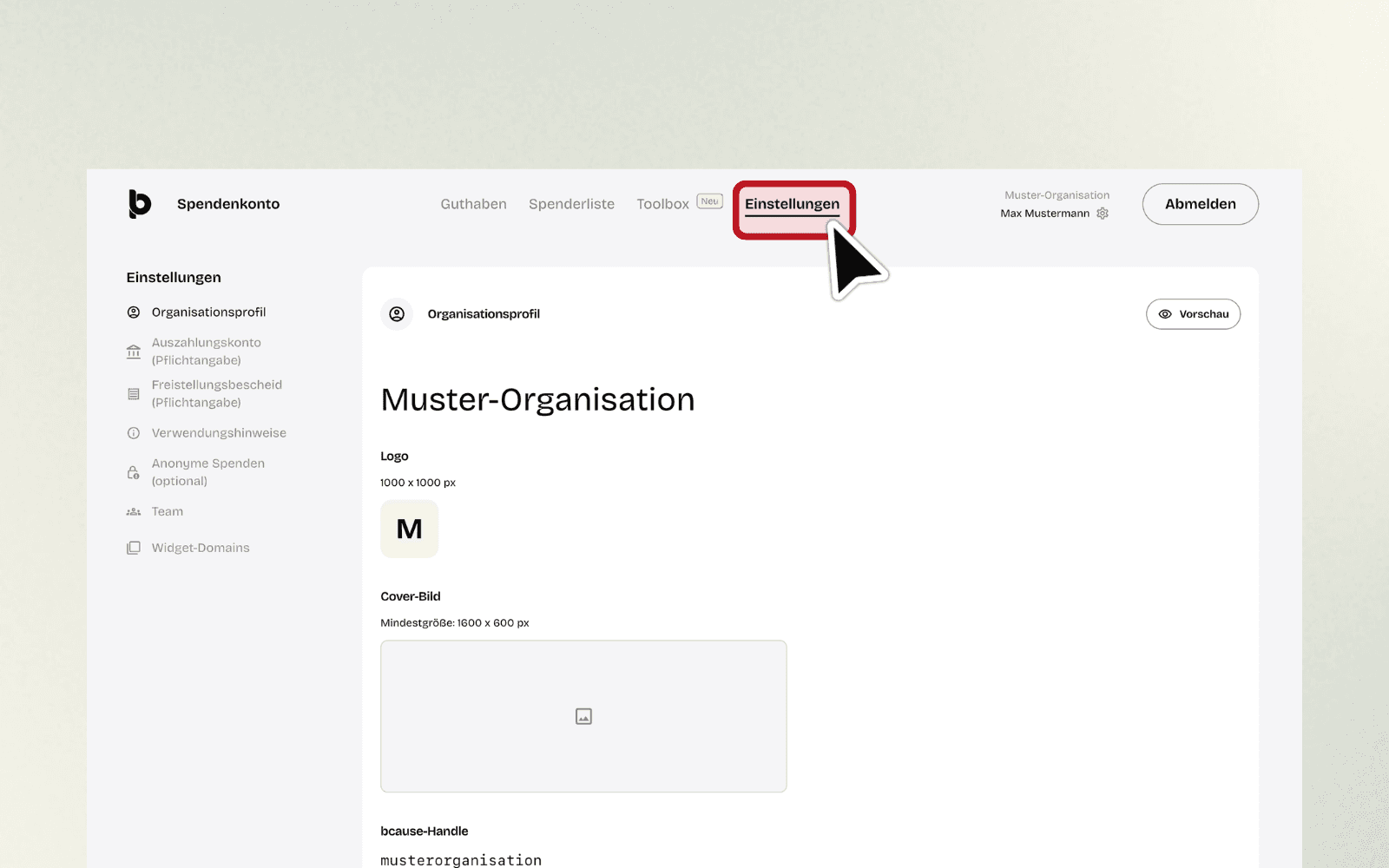
7. Access your user-specific information
Click on your name next to the organization name at the top right, for example "Max Mustermann", or on the small gear icon next to it. There you will find your personal account settings as the logged-in person within the organization.
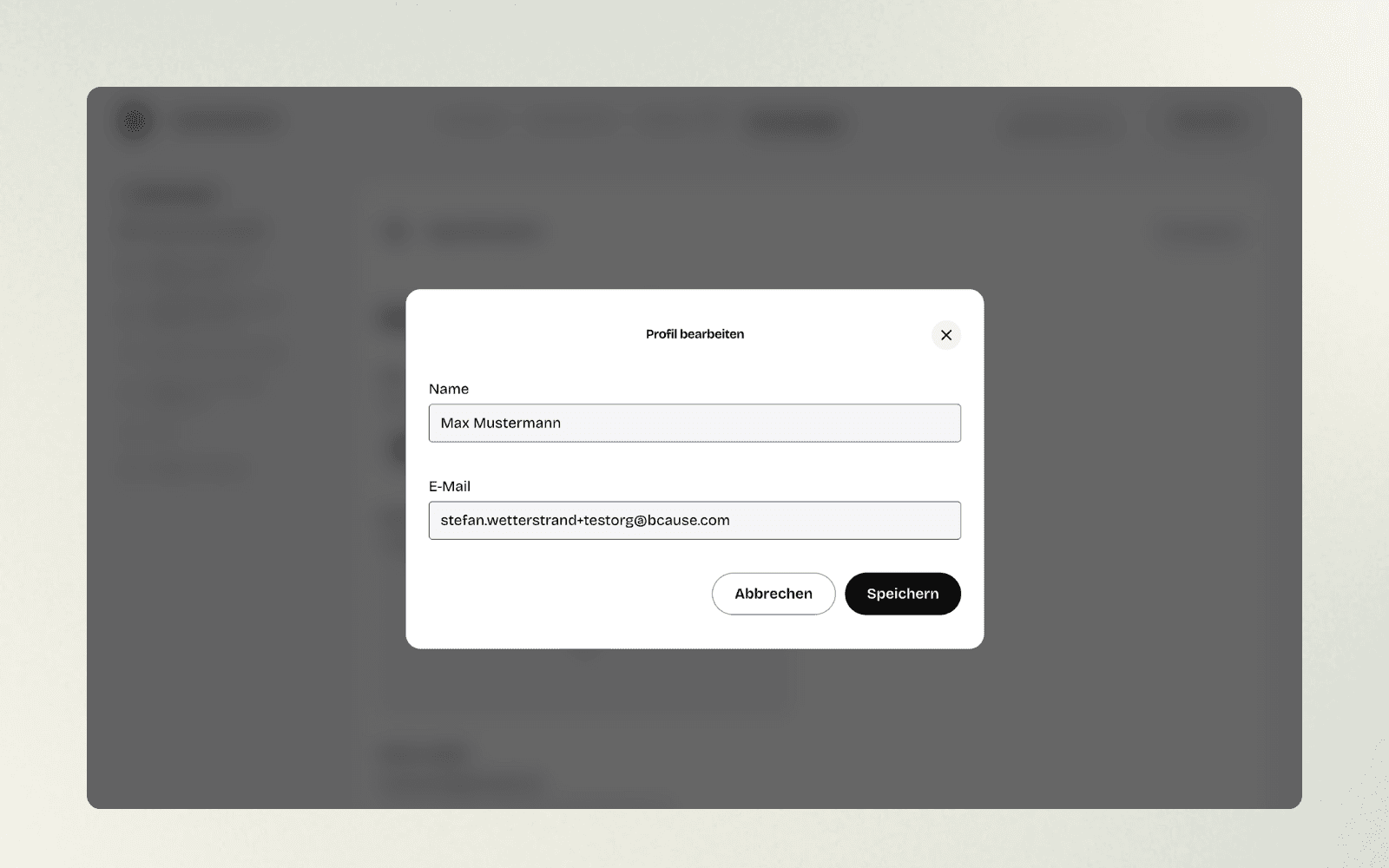
8. Log out
When you are finished, click on the "Log out" button at the top right. You will then be safely logged out of your organization account.

FAQs: Frequently Asked Questions
Where can I see if received donations have already been processed?
You can find this information in the "Balance" section below your account balance, as well as in the "Your transactions" list.
Do I always have to go through "Settings" to edit my account?
Yes, you manage all basic information about your organization, such as payout account or team, exclusively in the "Settings" area.
How do I get back to my donation account home page?
Simply click on "Balance" in the top navigation. This area is the homepage of your donation account.