Register organization
With this guide, you request access to an organization on bcause.com. At the end, your request will be submitted and bcause will review it.
Pro tip
When searching, use the official name of your organization (e.g., as shown in the legal notice). This will help you find the right organization faster and save you from having to make corrections later.
What you need
An email address where you can be reached
Access to your email inbox
The official name of your organization, for example from your legal notice
About 3–5 minutes of time
Step-by-step instructions
1. Open the login page
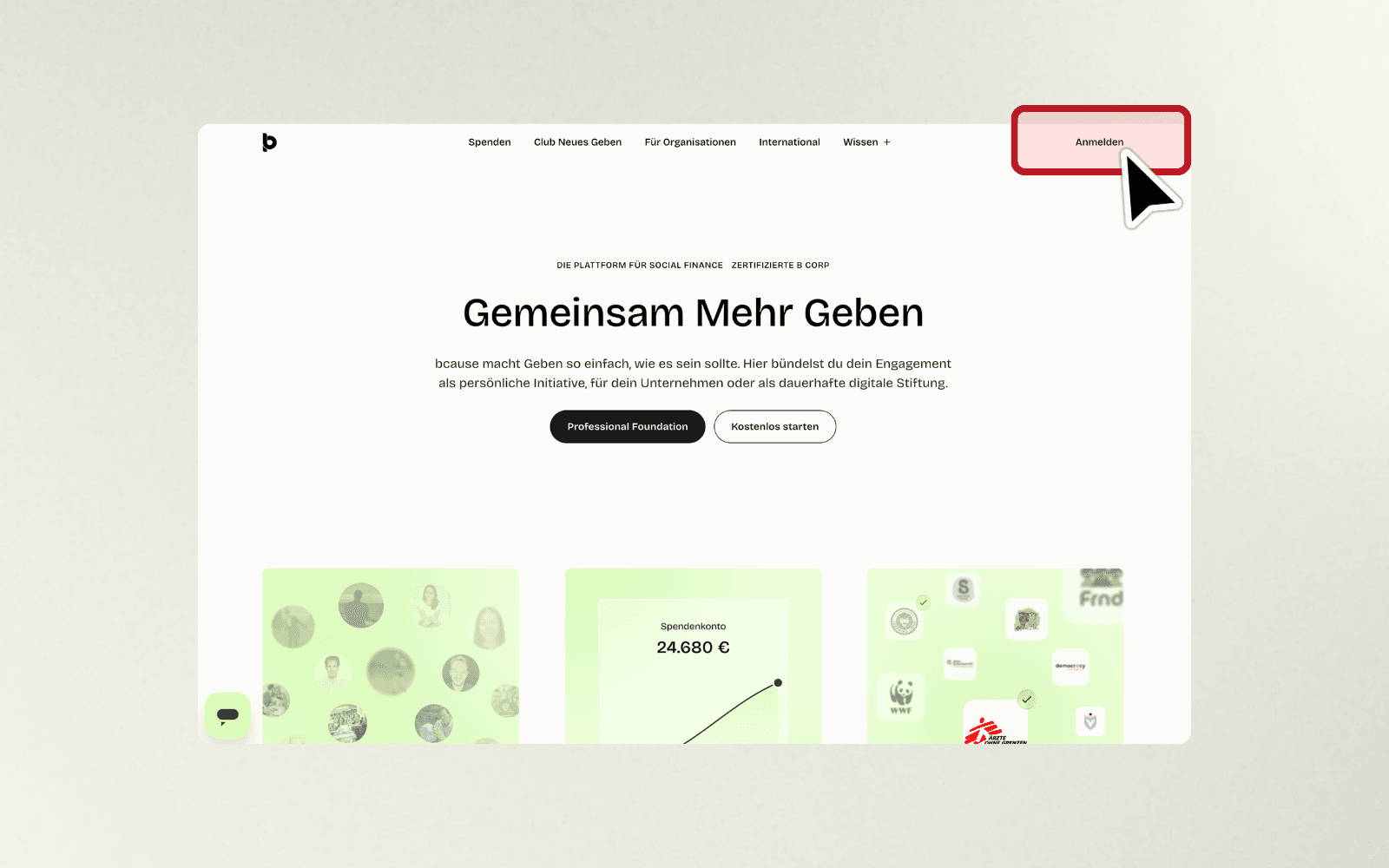
Go to bcause.com and tap "Log in" in the top right corner.
2. Choose "Request access" for organizations
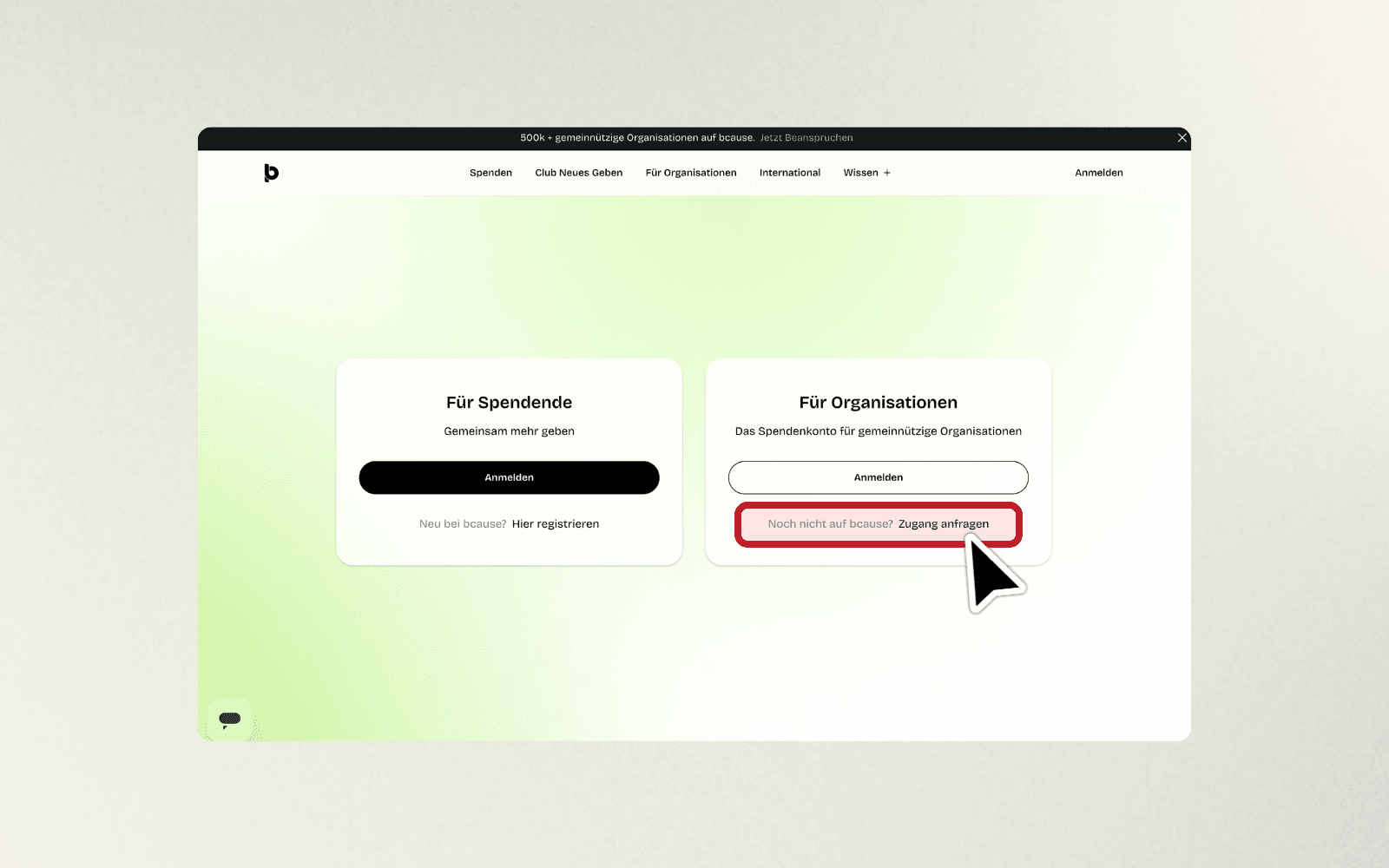
On the login page, you will see two sections: "For donors" and "For organizations". In the "For organizations" section, click on "Not on bcause yet? Request access".
3. Start the access request
On the next page, you will see the title "Get started". Click on the green button "Request access".

4. Open the organization search
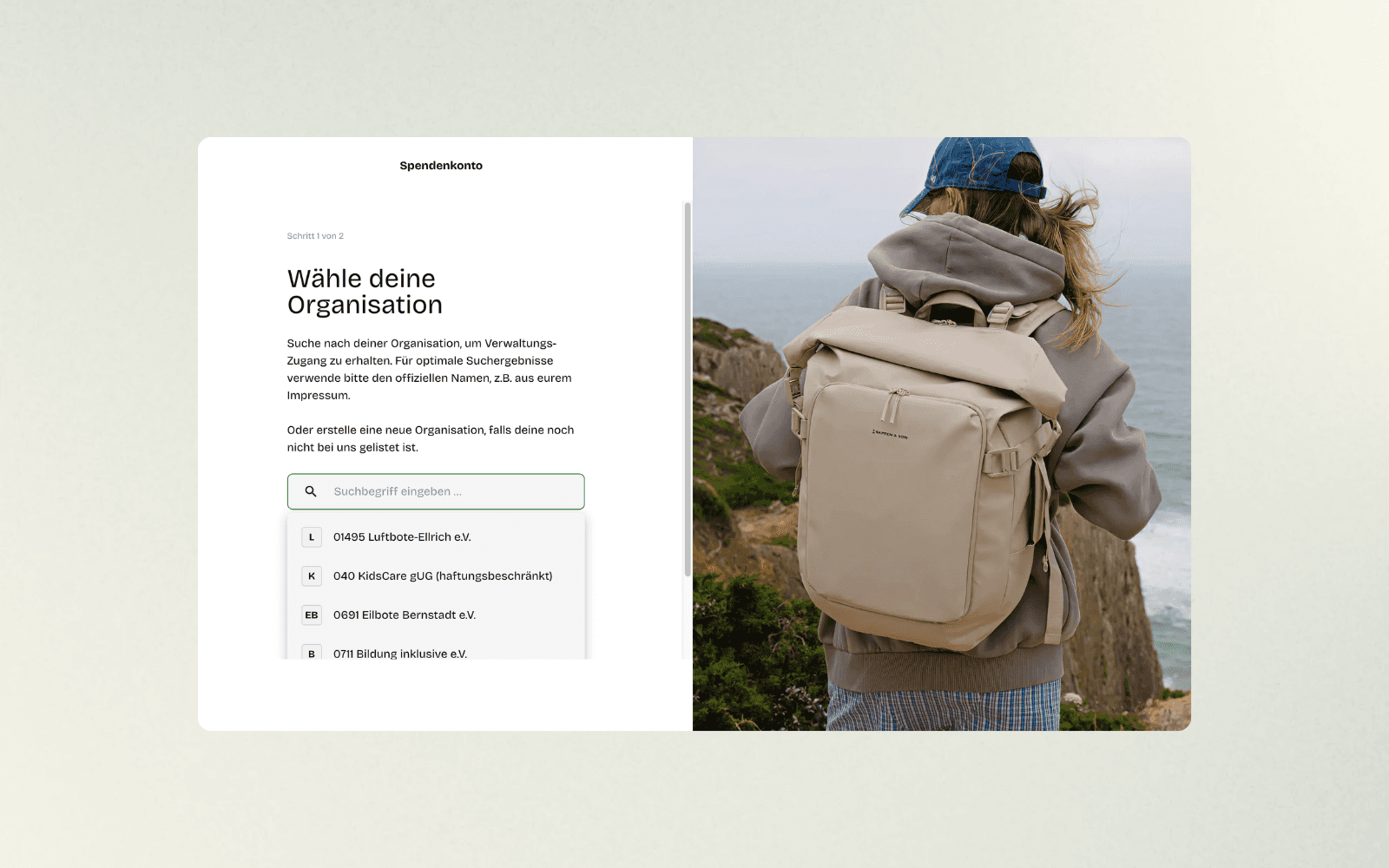
You will land on the page "Select your organization" (step 1 of 2). Here you will see a search field with the placeholder text "Enter search term …". Click inside this field.

5. Search for your organization
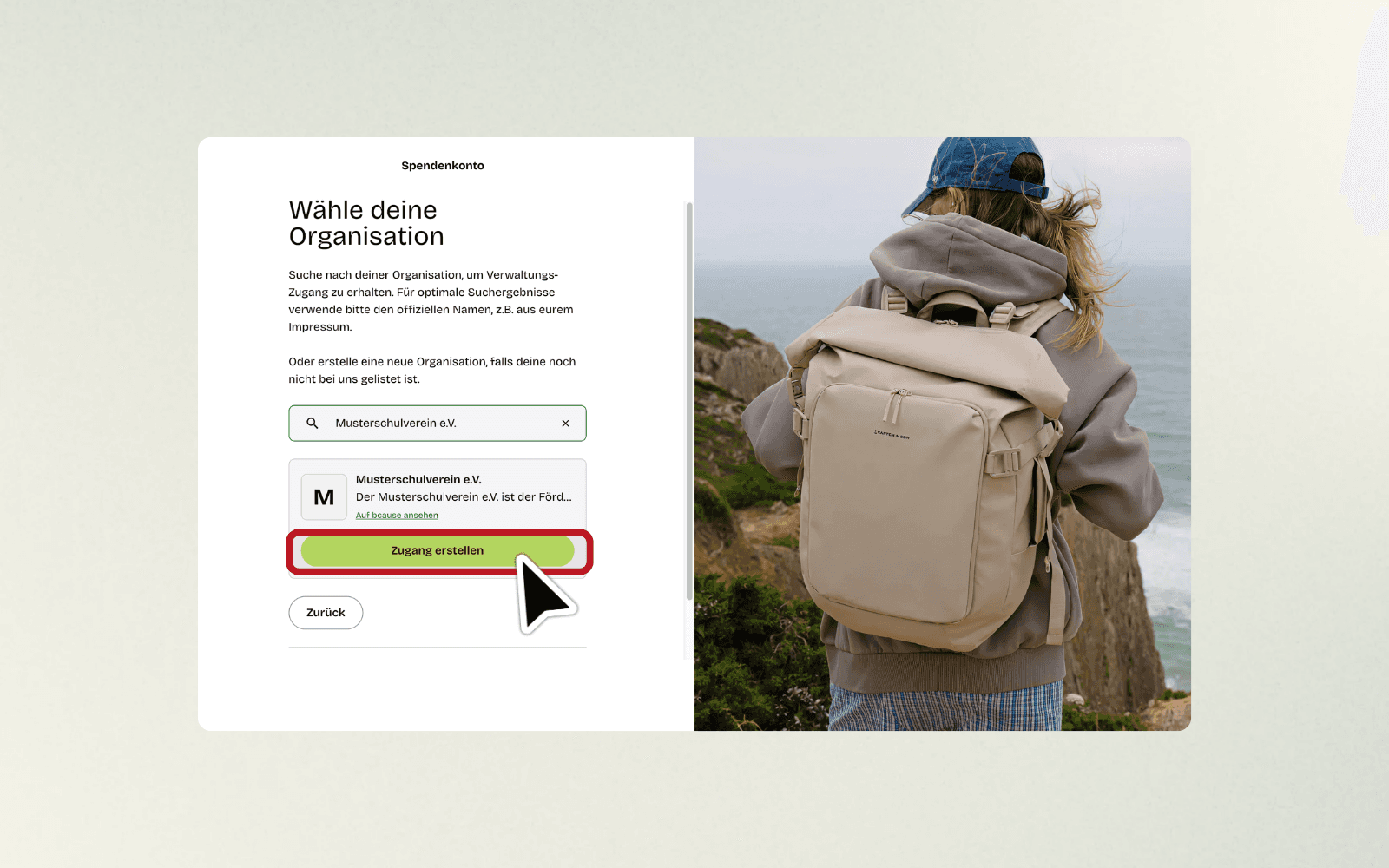
Type the official name of your organization into the search field, for example as it appears in your legal notice. Enter "muster", for example, to see matching results like "Musterschulverein e.V.".
6. Select your organization
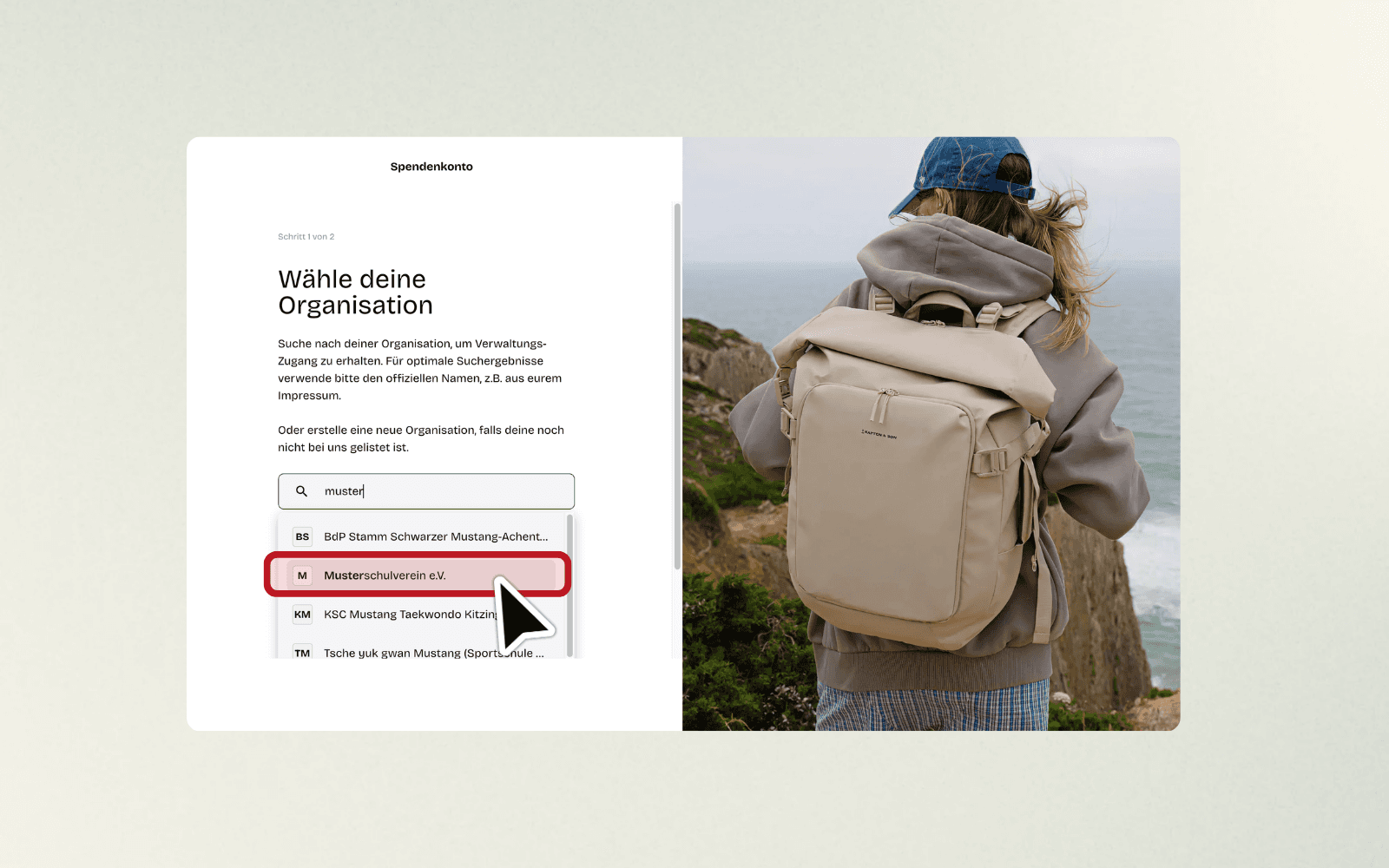
Once you have found your organization in the list, click on the name, for example on "Musterschulverein e.V.".
7. Request access
After you have selected your organization, you will see a brief description of it as well as the link "View on bcause". Click on the green button "Create access".
8. Enter your name
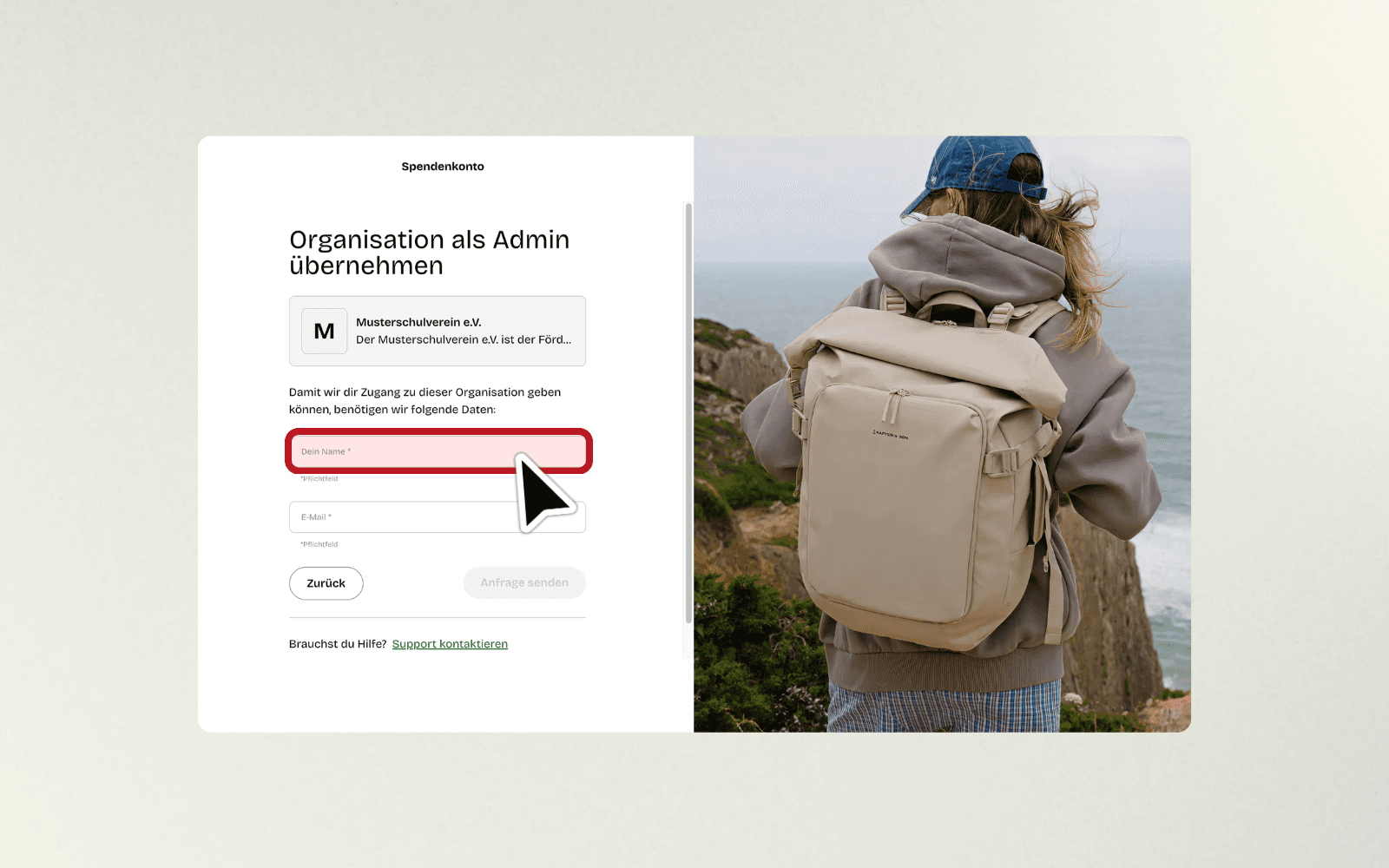
You are now on the "Claim organization as admin" page. Click on the "Your name" field and enter your full name, for example "Max Mustermann".
9. Enter your email address
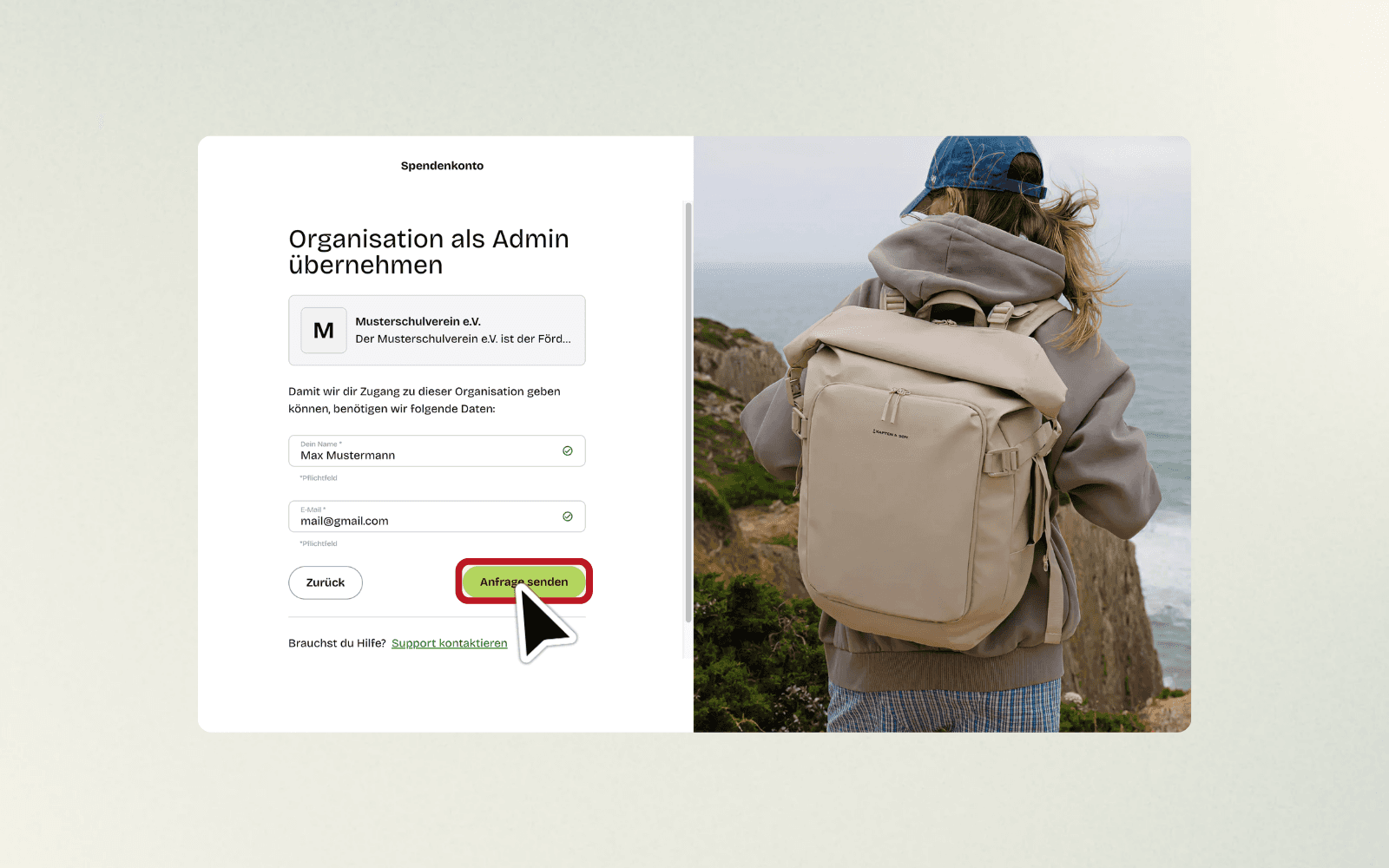
Then click on the "Email" field and enter your email address, for example "mail@gmail.com". A green checkmark shows you that your inputs are valid.

10. Submit your request
When both fields are filled in and confirmed with a green checkmark, click on the green button "Send request".
11. Receive confirmation
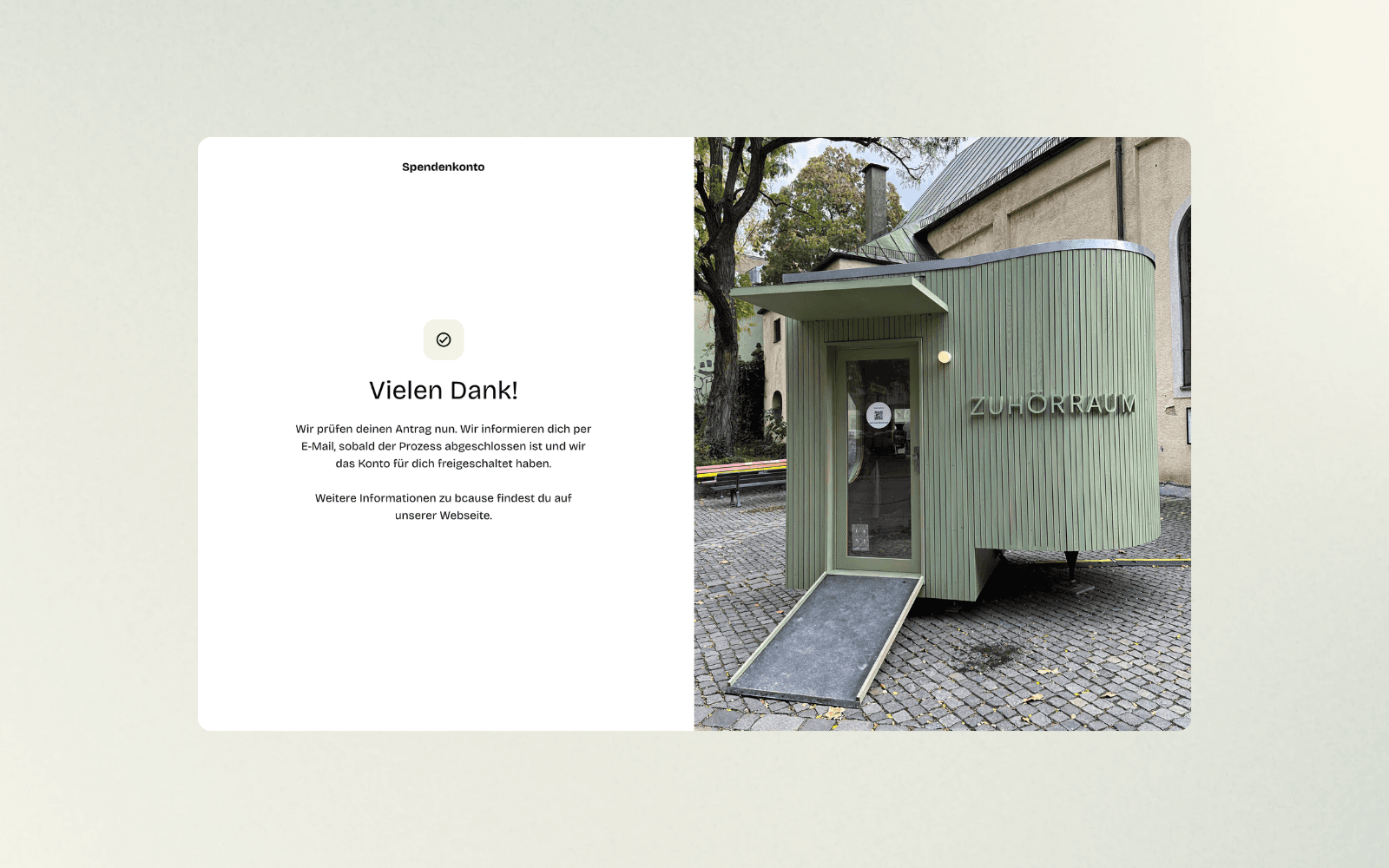
You will now see the message "Thank you!". We will review your application and get back to you by email as soon as the process is complete and your account has been activated.
FAQs: Frequently Asked Questions
Will I receive a confirmation that my application has been received?
Immediately after submitting, you will see a success page ("Thank you!") and receive further information via email.
What do I do if my organisation is not found?
If you don't get a suitable match, try the official name (e.g. as in the legal notice). If it is really not listed, you can create a new organization if necessary.
What happens next after submitting?
bcause is reviewing your application. We will then inform you by email as soon as the process is completed and your account has been activated.